ONYX1 apps for iPhone and Android
Take ONYX1 on site. The iPhone app has screens for crew and office work; the Android app uses your ONYX1 workspace and supports selected field work offline.
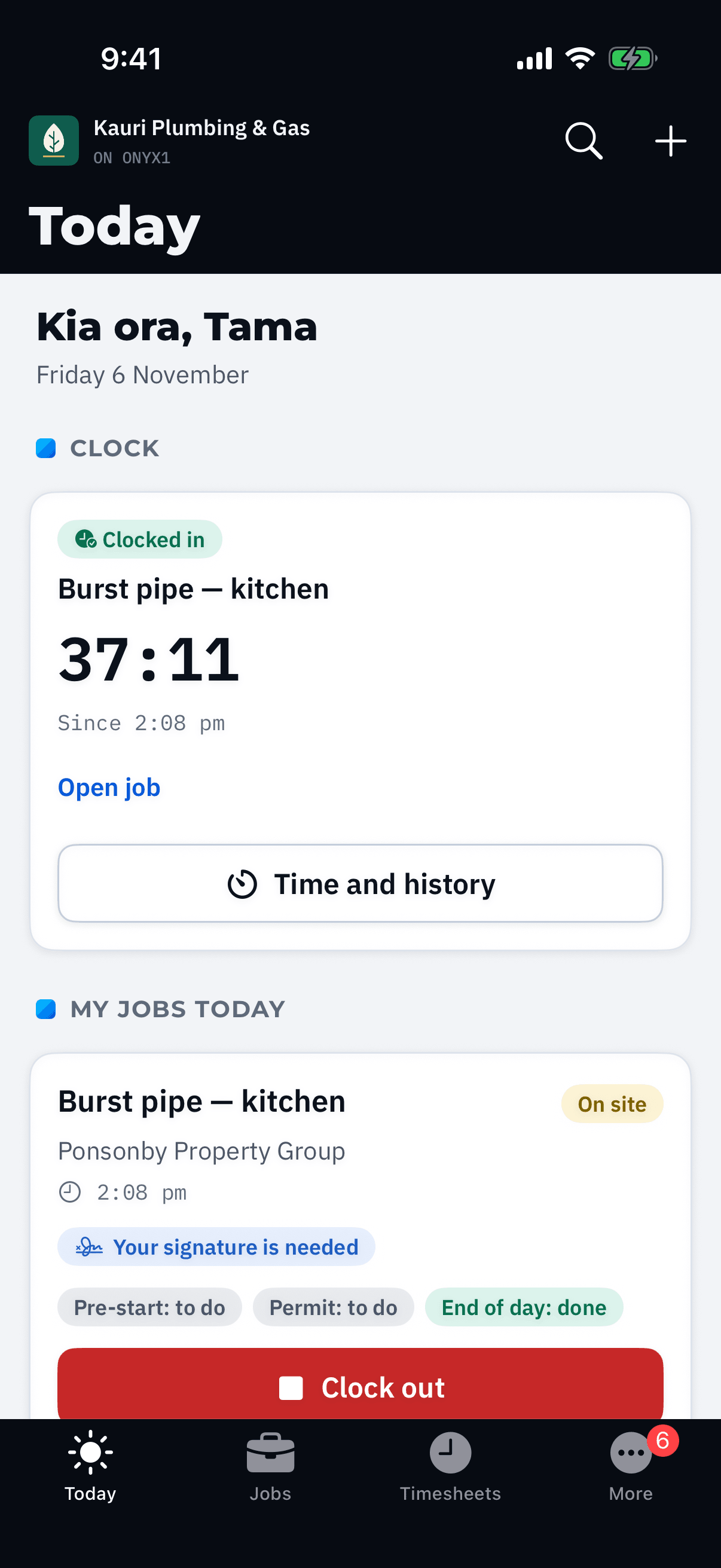
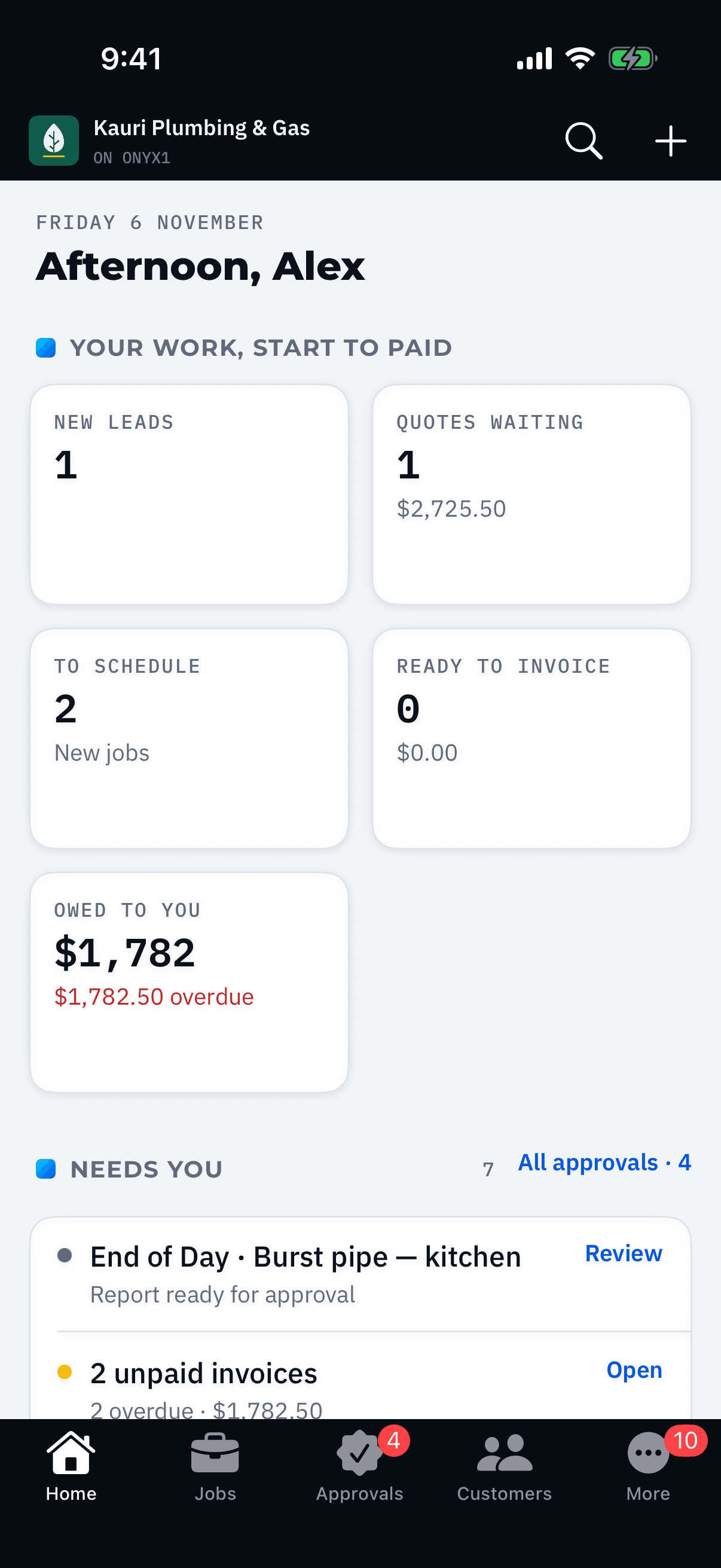
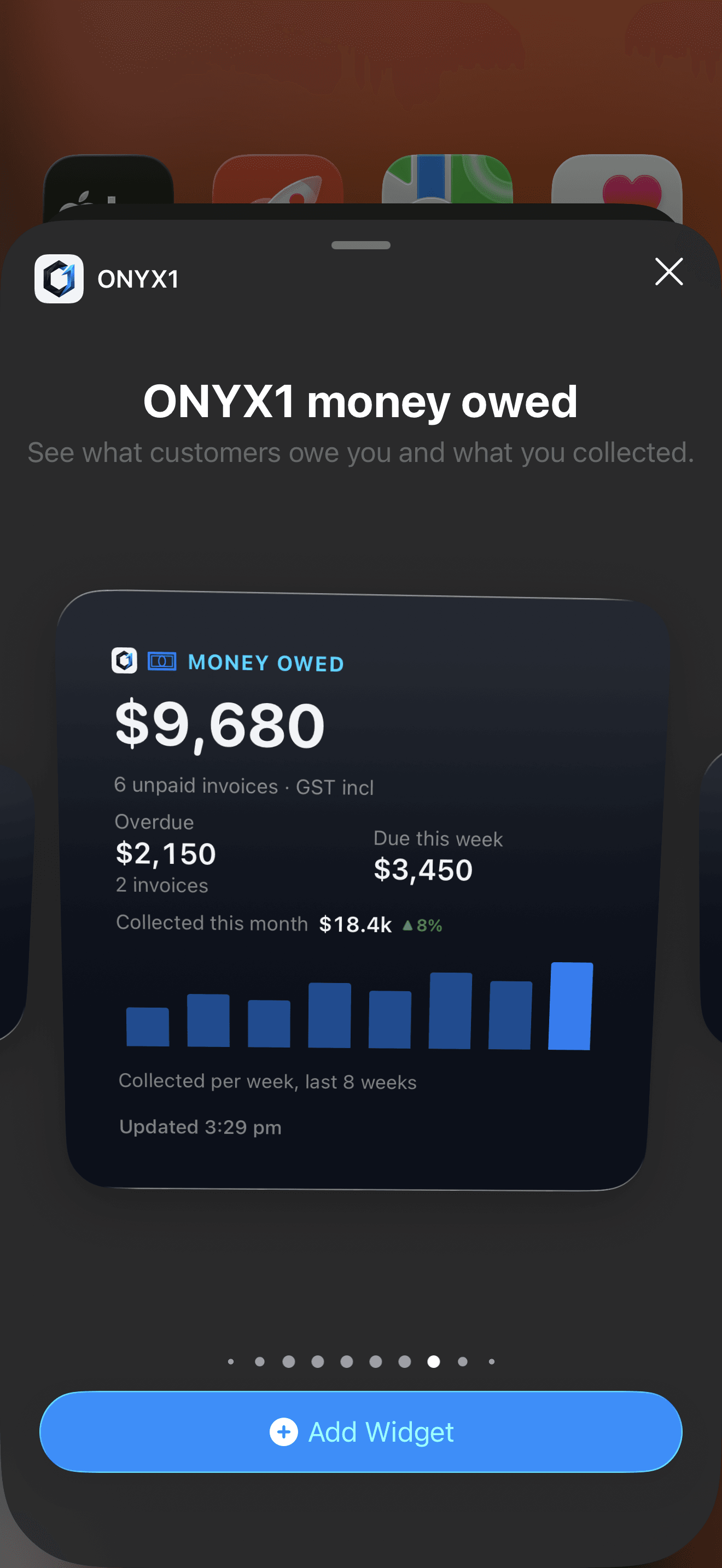
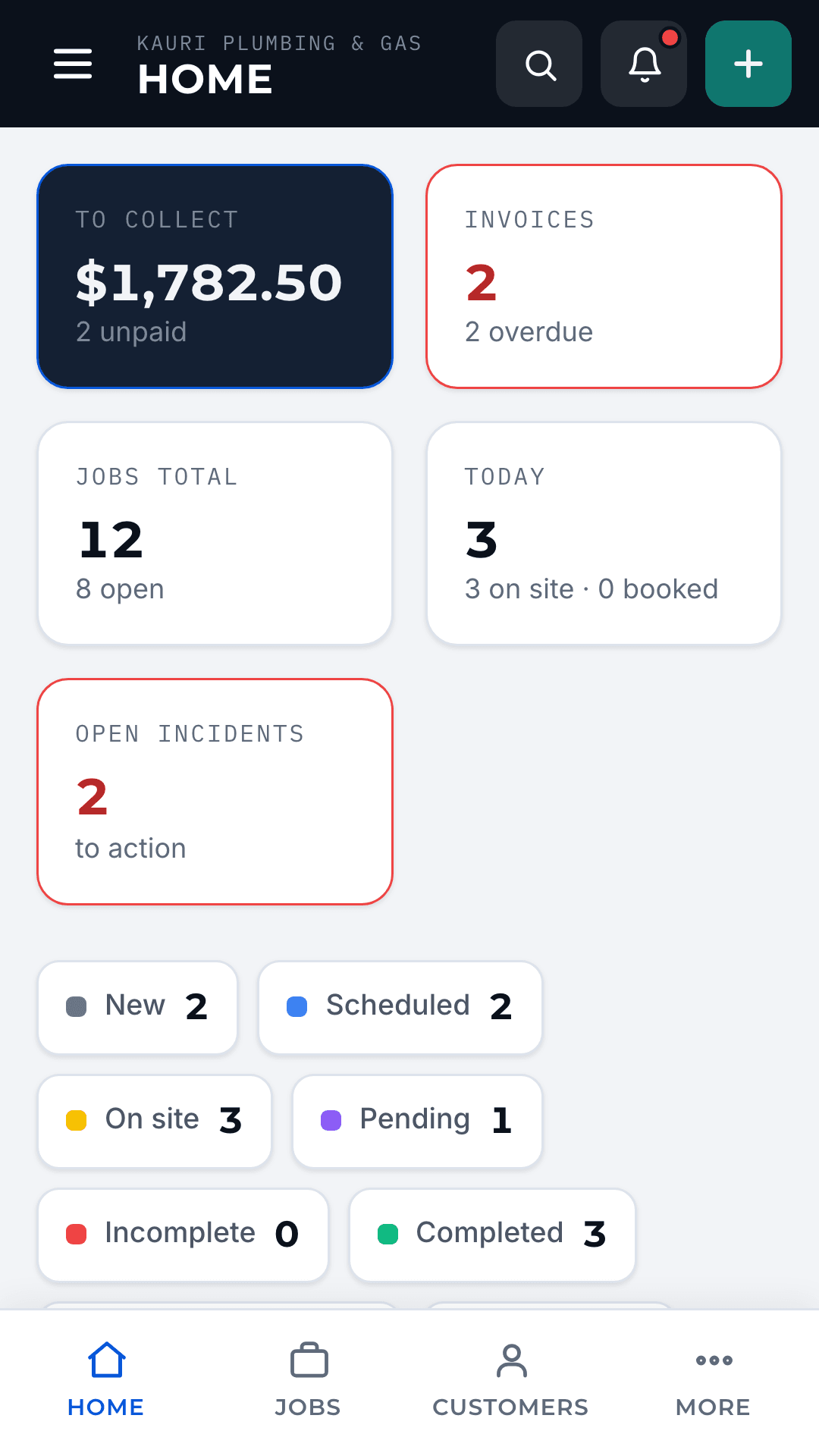
The iPhone and Android apps. Real product, demo data.
Both apps are free to download. Your business starts an ONYX1 account on the web, then your team signs in with its ONYX1 details.
The native iPhone app follows your role
Crew open on Today, with their clock and assigned jobs. They can open job details, clock in and out, add photos, complete safety forms and site reports, report incidents, sign off and check timesheets. The schedule is available to every role.
Owners, admins, dispatchers and office staff open on Home for the business view. Their screens include approvals, customers, quotes, invoices and leads. Owners can also see finances when the Finances module is on. Each person sees only the screens their ONYX1 role allows.
Selected work can wait for signal
On iPhone, job status changes, site and incident photos, and daily-report signatures can wait on the phone and send when signal returns. Clocking in and out still needs signal at the time.
The Android app uses the same ONYX1 account and workspace as the browser version. Choose photos from the device library. Supported job status changes and job or incident photo uploads can wait on the device and send when signal returns.
iPhone widgets for your role
Field users can add the ONYX1 clock widget. Owners, admins, dispatchers and office staff can add approvals, quotes and today's jobs. Site supervisors can add today's jobs, and owners, admins and site supervisors can add incidents.
With the Finances module on, owners, admins, dispatchers and office staff can add money owed, the money ticker and quote results. Only the owner gets the owner outlook. Money amounts stay hidden on the Lock Screen unless the owner turns them on.
Keep an eye on the clock
On iPhone, the ONYX1 clock widget and Lock Screen Live Activity show the running timer after you clock in. Apple Watch with watchOS 11 or later can show the Live Activity in Smart Stack.
Set it up
Step by step, in the ONYX1 help centre.